A warning does not always mean the installer contains a virus
Microsoft Defender SmartScreen and Chrome Safe Browsing use reputation and security checks. A new installer, an uncommon download, or a file whose publisher reputation is not yet established may receive an extra warning. You should still verify the source before continuing.
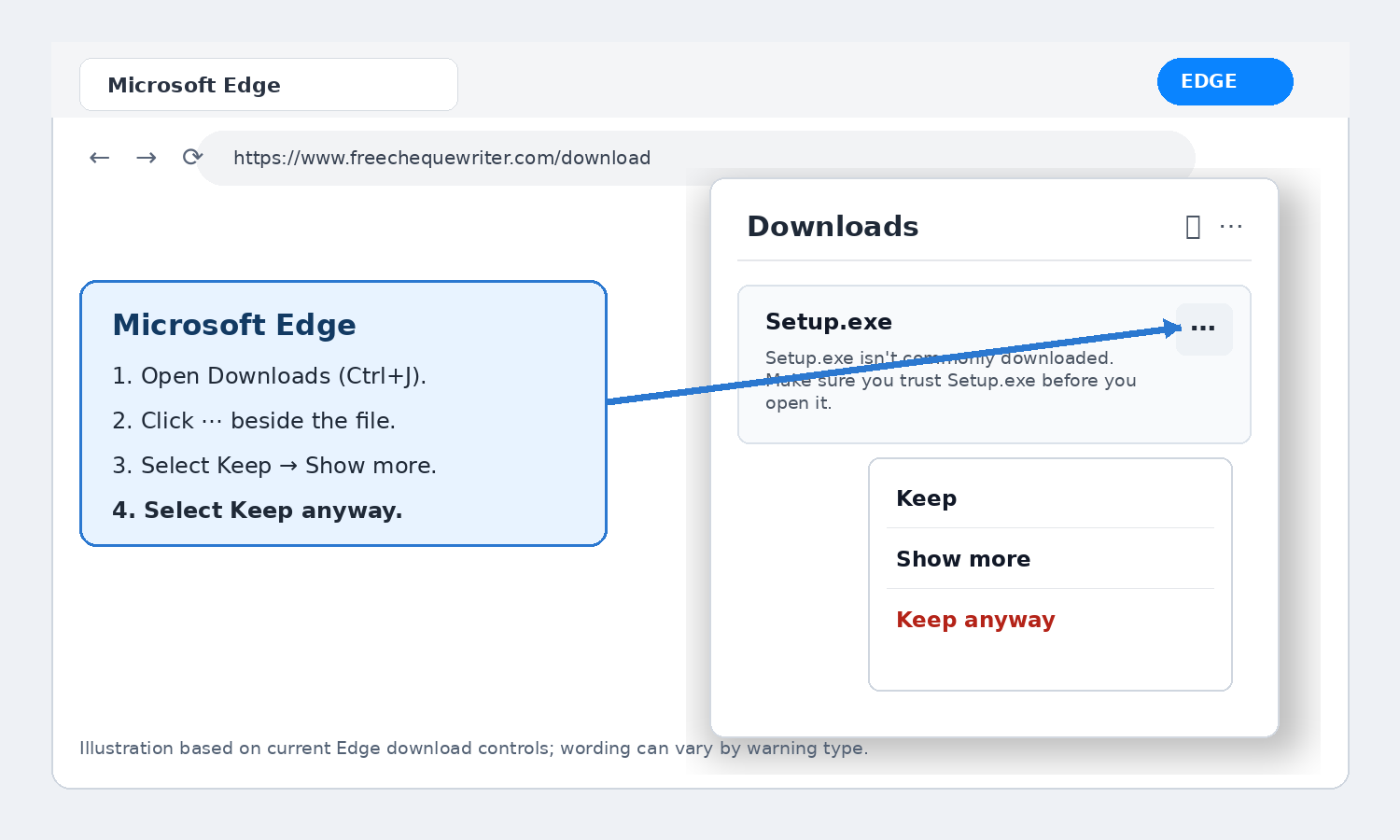
Microsoft Edge: keep the downloaded installer
When Edge says the file is not commonly downloaded or might be unsafe:
- Open the Downloads panel. Select the Downloads icon near the top-right corner, or press Ctrl + J.
- Find the Chrysanth Cheque Writer installer and select More actions (…) beside it.
- Select Keep.
- Select Show more, then choose Keep anyway.
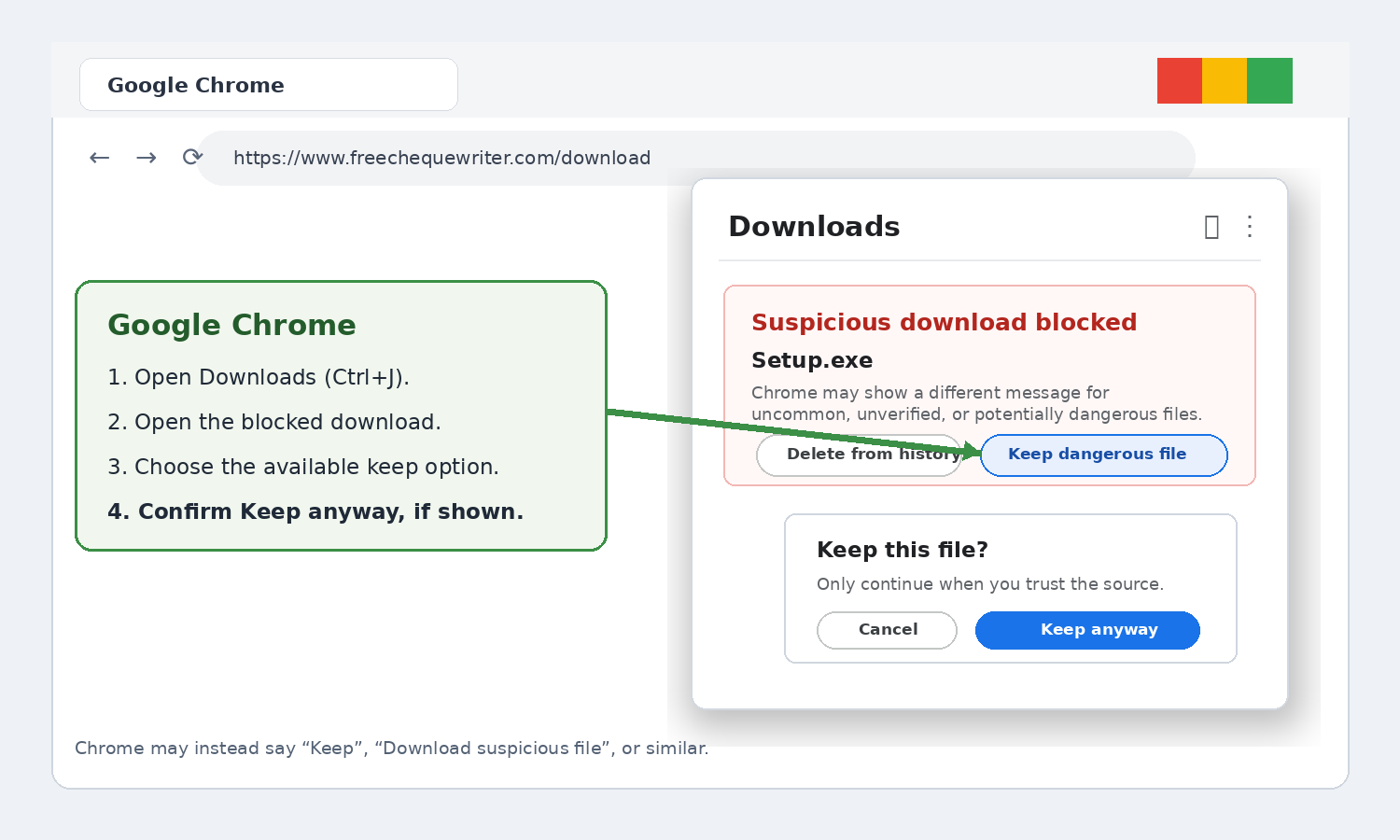
Google Chrome: keep the downloaded installer
Chrome uses different messages for uncommon, suspicious, unverified, or potentially dangerous downloads.
- Open Chrome’s Downloads panel from the toolbar, or press Ctrl + J.
- Find the blocked Chrysanth Cheque Writer installer.
- Select the available continuation option. Depending on the warning, it may be named Keep, Keep dangerous file, or Download suspicious file.
- If Chrome asks for confirmation, select Keep anyway.
Windows SmartScreen: run the installer
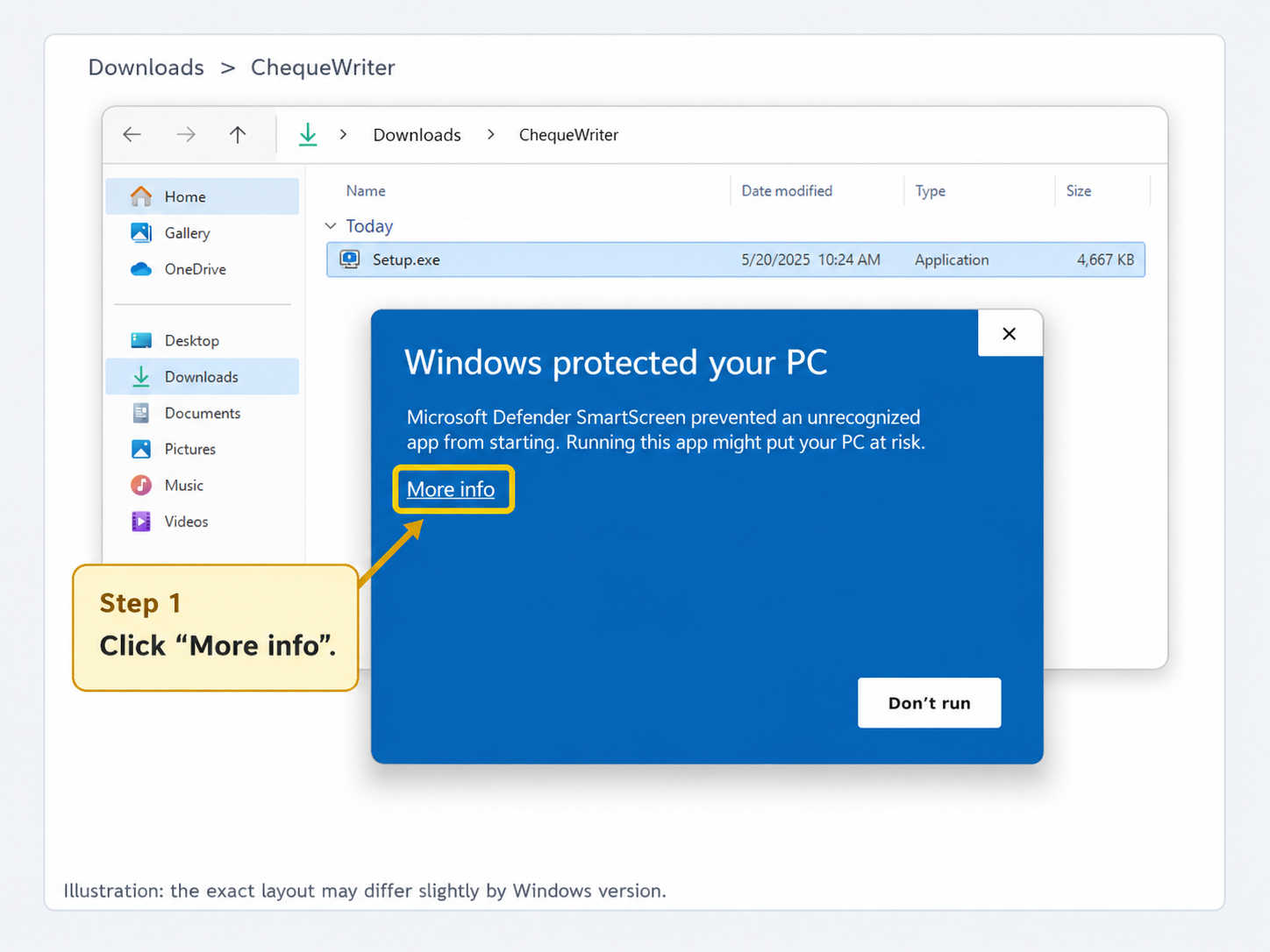
After the browser keeps the file, Windows may display “Windows protected your PC” when you open the installer.
- Open your Downloads folder and double-click the installer.
- On the blue “Windows protected your PC” window, select More info.
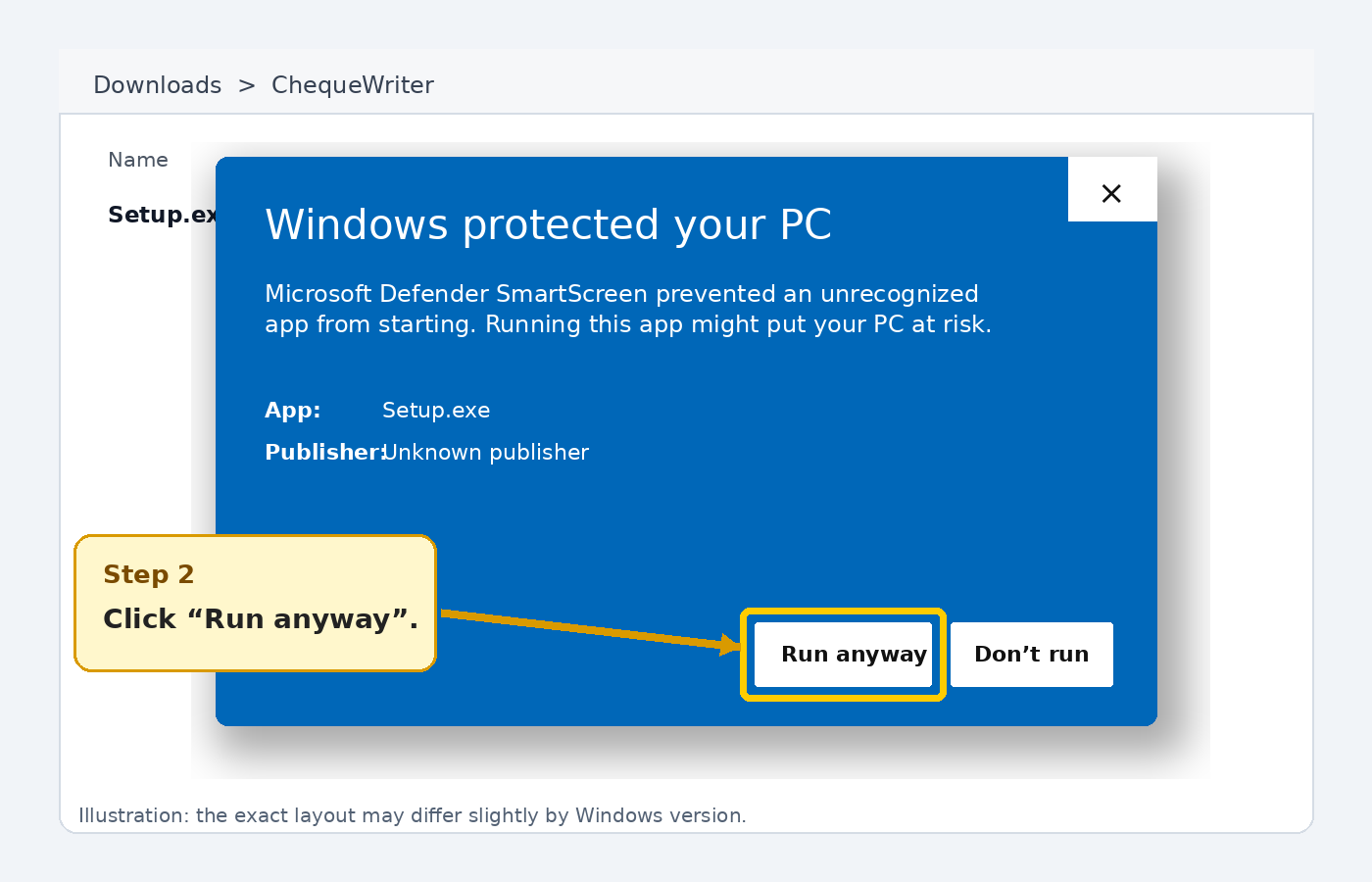
- Check that the displayed app name is the installer you downloaded.
- Select Run anyway to start the installation.
When there is no “Keep anyway” or “Run anyway” option
Your Windows PC or browser may be managed by your employer, school, or IT administrator. A security policy can remove the option to continue. In that situation, contact your IT administrator and ask them to review or approve the installer.
Do not disable Microsoft Defender, SmartScreen, Chrome Safe Browsing, or your antivirus just to install the software.
Frequently asked questions
Why does Windows say the app is “unrecognized”?
SmartScreen may not yet have enough reputation information about the installer or publisher. This can happen with new software releases and applications that have fewer downloads.
Is it safe to click “Run anyway”?
Only when you deliberately downloaded the installer from the official Chrysanth Cheque Writer website and have confirmed that the filename is the one you expected. Never use these steps for an unexpected attachment or a file from an unknown source.
Why are the buttons different on my computer?
Microsoft Edge, Google Chrome, Windows versions, antivirus products, and company security policies can use different warning text or layouts. Look for the equivalent one-time option to keep the trusted download or continue running it.
Official security information
These instructions are based on official Microsoft and Google security guidance. The wording and appearance of warnings may vary depending on your browser, Windows version, and security settings.
Microsoft: Edge support for Microsoft Defender SmartScreen
Microsoft: Troubleshoot Edge download failures
Google: Chrome blocks some downloads